
Device guide
Set up Diamond IPTV on Amazon Fire TV and Firestick
By the Diamond IPTV support team · Updated · 6 min read
Short answer
On Fire TV devices that run Fire OS, install Downloader from the Amazon Appstore, allow it to install apps in Developer Options, then use it to install a player such as TiviMate or IPTV Smarters and sign in with the Xtream Codes details we send you. Newer Fire TV models running Vega OS cannot install these apps.
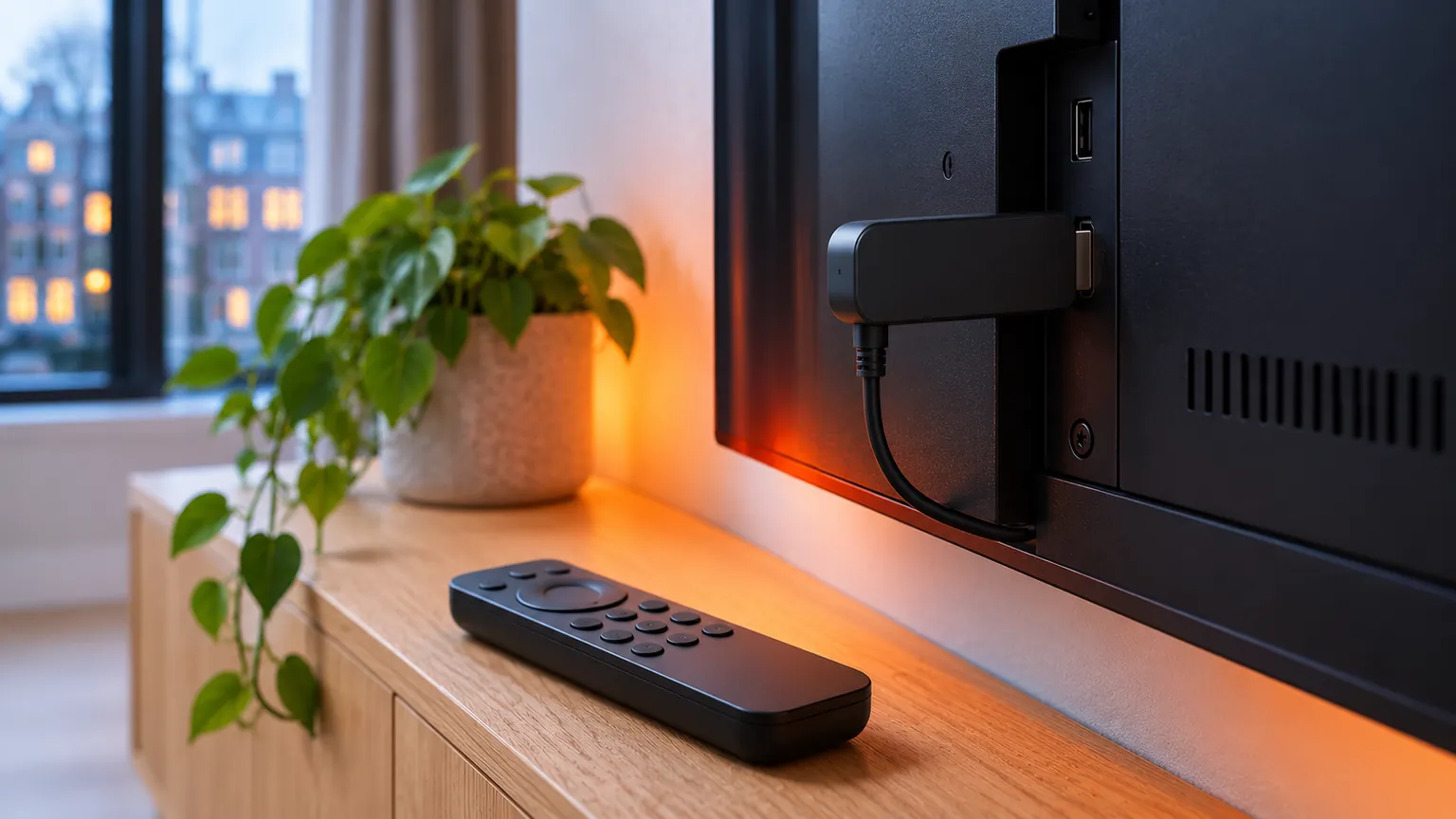
First, check which Fire TV you have
Most Fire TV Sticks and Fire TV Cubes run Fire OS, which is based on Android and can install player apps from outside the Amazon Appstore. Amazon's newer Vega OS devices (introduced in 2025) cannot install Android apps at all, so this guide will not work on them. If Developer Options never appears in step 2, you are probably on Vega OS — message us and we'll suggest another route.
Step 1 — Install Downloader
- From the Fire TV home screen, open Find (the magnifying glass).
- Search for Downloader — the orange app published by AFTVnews.
- Select Get or Download and wait for it to install.
Step 2 — Allow Downloader to install apps
- Open Settings (the gear icon) → My Fire TV. On some versions this is called Device & Software.
- Choose About, highlight your device name and press Select on the remote seven times in a row. A message confirms that developer mode is on.
- Go back one screen and open Developer Options → Install Unknown Apps (older menus: Apps from Unknown Sources).
- Turn it On for Downloader only.
- Open Downloader and choose Allow when it asks for access to files.
A word on safety. Allowing “unknown apps” lets software install without the app store's review. Switch it on for Downloader only, install apps only from the developer's own website (the addresses below), and switch the permission off again when you're done.
Step 3 — Install a player app
Diamond IPTV does not have its own app — you watch through a player app of your choice. Type a code into Downloader's address box and press Go, or type the full address instead. We checked where each code points on 26 November 2026:
| Player | Downloader code | Official address it opens |
|---|---|---|
| TiviMate | 272483 | https://files.tivimate.com/tivimate.apk |
| IPTV Smarters Pro | 78522 | https://www.iptvsmarters.com/smarters.apk |
| IBO Player Pro | 481220 | https://iboproapp.com/ibopro.apk |
Anyone can register a Downloader code and re-point it later, so if the address shown on screen does not match the table, stop and use the full address instead. When the download finishes choose Install, then Done, and you can delete the installer file to free space.
Step 4 — Sign in with your Diamond IPTV details
Every player below asks for the same three details, which we send after your trial or order is set up:
| Field in the app | What to enter |
|---|---|
| Server / Host URL | The full address we send, including http:// or https:// and the port — for example http://line.example.com:8080 |
| Username | Exactly as sent (it is case-sensitive) |
| Password | Exactly as sent |
Type the address exactly as we give it to you. TV keyboards like to add a space at the end — delete it if the login fails.
App-specific screens are covered in our TiviMate, IPTV Smarters Pro and IBO Player Pro guides.
Getting the best picture on a Firestick
- A wired connection or a strong 5 GHz Wi-Fi signal makes the biggest difference. Amazon sells an Ethernet adapter for Fire TV sticks.
- Basic sticks have little storage. Keep one or two player apps, not five.
- If channels stutter, try changing the video player inside the app before anything else — see buffering and freezing.
Common questions
- Is TiviMate in the Amazon Appstore?
- Not usually, which is why Fire TV owners install it through Downloader using the code or address in the table above.
- Do I need a VPN to use a Firestick for IPTV?
- No. A VPN is not required to install the apps or sign in to Diamond IPTV.
- How many Firesticks can I use?
- You can install the app on as many devices as you like. The number of connections on your plan decides how many can stream at the same time.